Site Directory

Home Page
About / Contact
Site Search / Links

Photoshop Articles & Tutorials

Auto Contrast
Better Blue Sky
Crooked Pictures
Photoshop Tips
Haze Removal
History Brush
Hot-Key Action
Lonestar USA Action
Perspective Correction
Rubber Stamp Tool
Skin Tone Correction
Smart Blur
Unsharp Mask + Fade

Miscellaneous Articles

Action Photography
Aperture Diffraction
D1X Mystery Pixels
D2H Skin Tones
D30 & D60 Color Fix
LCD Viewfinder Ideas
Multiplier Effect
Nikon D1 Color Fix
Printing & Processing
QM Pro for Noise
Why Shoot Raw?

Digital SLR
Camera Reviews

Contax N Digital
Canon EOS D30
Canon EOS 1D
Fuji S1 Pro
Fuji S2 Pro
Kodak DCS 315
Kodak DCS 620
Kodak DCS 620x
Kodak DCS 760
Kodak DCS Pro14n
Kodak 645M ProBack Nikon D100
Nikon D1 / D1H / D1X
Nikon D2H
Nikon D2X
Olympus E1

Point & Shoot
Camera Reviews

Agfa ePhoto 1680
Nikon Coolpix 700
Nikon Coolpix 800
Nikon Coolpix 900
Nikon Coolpix 950
Nikon Coolpix 990
Nikon Coolpix 995
Nikon Coolpix 5700

Other Reviews

Flash Accessories
Kodak 8500 Printer
Olympus P-11 Printer
Sigma 50-500 Lens


Lonestardigital.com

Best viewed at 1024 x 768 or greater screen resolution, 16 bit color or better. All content & photographs copyrighted, all rights reserved.  

Creating a Hot-key Photoshop Action

A short tutorial on how to create and record an "Action" in Adobe Photoshop.

Available only in the full version of PhotoShop, the Actions palette was first introduced in version 4.0. An Action is a macro recording/editing/playback feature which lets you capture specific commands and sequences of events that you might frequently use in PhotoShop.

For example, Nikon D1 and Canon D30 pictures often need some consistent basic color corrections, such as described in the D1 Colors and D30 Colors articles located in this site. By recording an Action, you can simply and quickly batch process a group of images, or take a quick look at the effect of the correction with a simple keystroke.

Creating a new Action


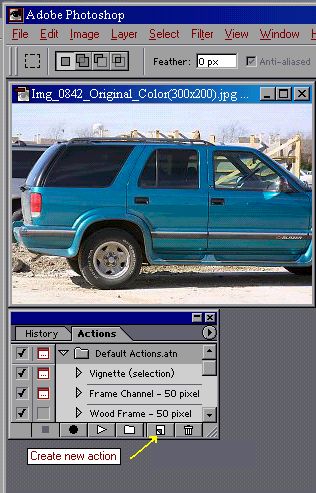
You'll find the Actions section next to the History tab. (As shown.)

Click on "Create new action".

Selecting a hot key


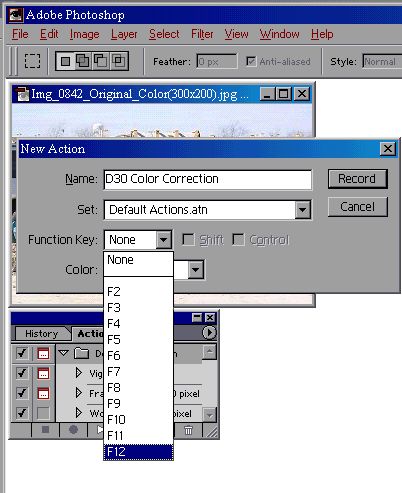
A "New Action" information box will pop up.

Type in the label of your choice. (I picked "D30 Color Correction")

Choose any function key from the drop-down choices. This will give you a one stroke hot-key to play the action.

Then click on the "Record" button.

Recording the Action


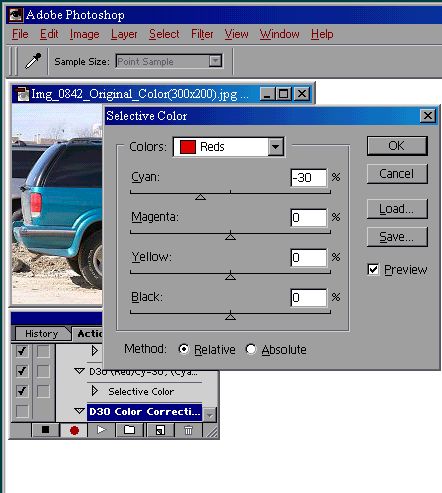
Go through the selective color adjustment procedures outlined in the first section.

The first step is shown at left. Follow this with the other adjustment.

Click on "OK" when you've finished both selective color adjustment steps.

Stopping the recording


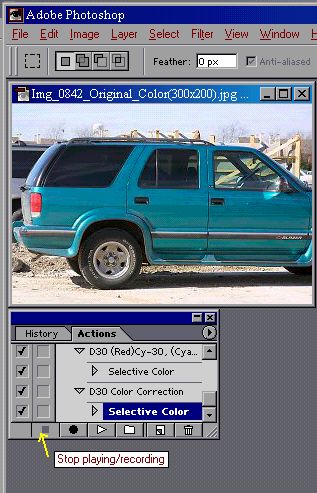
Now click on the "Stop playing/recording" button as shown at left.

That's it.


Your new Action is in place, permanently recorded for ease of use.

To "play" the action, you can simply hit the hot-key (function key) chosen, or go to the Actions tab and click on the play arrow. (The right arrow symbol.)

I prefer the hot-key (in this example the F12 key), because it's so fast & easy to use.