Site Directory

Home Page
About / Contact
Site Search / Links

Photoshop Articles & Tutorials

Auto Contrast
Better Blue Sky
Crooked Pictures
Photoshop Tips
Haze Removal
History Brush
Hot-Key Action
Lonestar USA Action
Perspective Correction
Rubber Stamp Tool
Skin Tone Correction
Smart Blur
Unsharp Mask + Fade

Miscellaneous Articles

Action Photography
Aperture Diffraction
D1X Mystery Pixels
D2H Skin Tones
D30 & D60 Color Fix
LCD Viewfinder Ideas
Multiplier Effect
Nikon D1 Color Fix
Printing & Processing
QM Pro for Noise
Why Shoot Raw?

Digital SLR
Camera Reviews

Contax N Digital
Canon EOS D30
Canon EOS 1D
Fuji S1 Pro
Fuji S2 Pro
Kodak DCS 315
Kodak DCS 620
Kodak DCS 620x
Kodak DCS 760
Kodak DCS Pro14n
Kodak 645M ProBack Nikon D100
Nikon D1 / D1H / D1X
Nikon D2H
Nikon D2X
Olympus E1

Point & Shoot
Camera Reviews

Agfa ePhoto 1680
Nikon Coolpix 700
Nikon Coolpix 800
Nikon Coolpix 900
Nikon Coolpix 950
Nikon Coolpix 990
Nikon Coolpix 995
Nikon Coolpix 5700

Other Reviews

Flash Accessories
Kodak 8500 Printer
Olympus P-11 Printer
Sigma 50-500 Lens

Lonestardigital.com

Best viewed at 1024 x 768 or greater screen resolution, 16 bit color or better. All content & photographs copyrighted, all rights reserved.  

Adobe Photoshop's Rubber Stamp Tool
(Also known as the Clone Tool)

The Rubber Stamp tool is a sophisticated copy & paste operation. Simply put, it allows you to copy an existing part of a picture and then paste it on top of another area. The Rubber Stamp does its job without looking like an unsightly band-aid patch. The Rubber Stamp tool is also called the Clone Tool.

Dust & dirt spots, blemishes, red-eye, and nearly any other kind of flaw you can imagine can be invisibly corrected with Adobe Photoshop's Rubber Stamp Tool. It can invisibly rid you of the unexpected piece of lint on a sweater, the unwanted reflection on an eyeglass lens, the detracting skin blemish or two (or more). Once you get the hang of it, you'll find yourself using the Rubber Stamp to some degree on most of your "keeper" pictures.


Using the Rubber Stamp

Dust 1

Here's a simple repair:

A frequent problem with
pro style cameras is the accumulation of dust or dirt spots on top of the camera's imager.

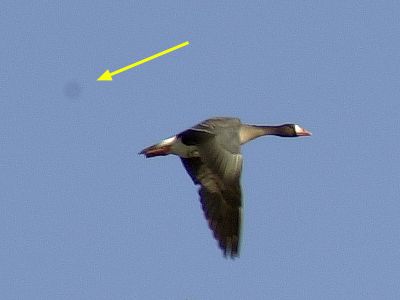
In this picture, dust on the CCD of a Nikon D1 shows up as a "UFO" next to this Canada Goose in flight.

An easy fix for the Rubber Stamp...

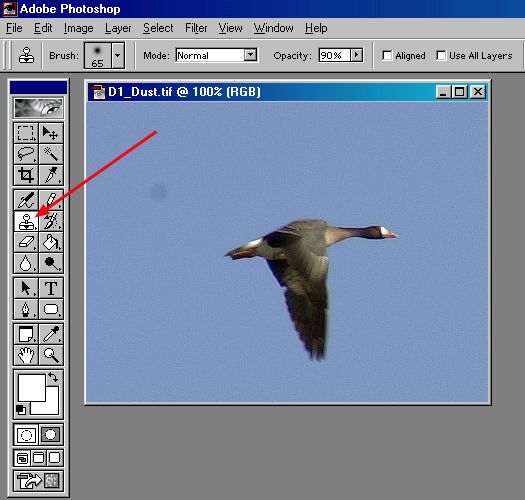
Choose the Rubber Stamp Tool from the main toolbar in Adobe Photoshop.
Click the toolbar icon with your mouse, or simply press the letter "S" on your keyboard.

Canadian Goose: Selecting the Rubber Stamp tool

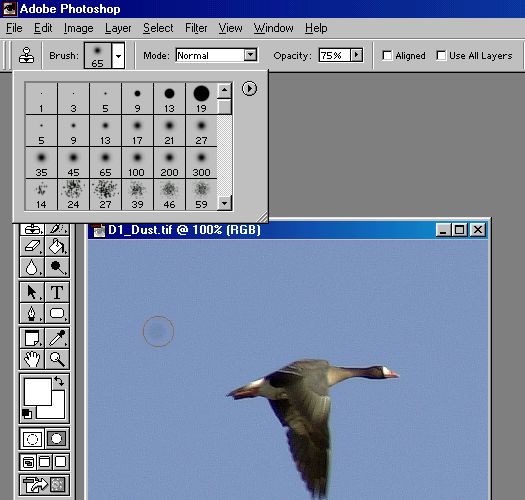
Rubber Stamp Options: Depending on the version of Photoshop you're using, the Mode,
Brushes, Opacity, and other option locations will vary. (Version 6.0.1 shown.)

Canadian Goose: Rubber Stamp Options

Rubber Stamp option settings

  • Brushes: There are three types of brushes... Hard-edged, soft-edged, and splattery.

    I use the soft-edged brushes 99% of the time, they make the cleanest repairs because they feather out the edges of the cloning stamp as it is applied. Much like a soft, light overspray around the edges.

    I use the hard-edged brushed only if I'm cloning (stamping) next to an edge I don't want to get overspray on. The hard-edged brush will leave a band-aid edge if you're not careful.

    I never use the splattery brushes. Experience has shown me that they're very visible, they make a ragged edged repair.

    Helpful tip - once you pick a brush, you can quickly and easily change its size during the course of repairs by using the " [ " or " ] " keys on your keyboard. (They're next to the letter P). They act as quick plus and minus sizing tools on the fly. Every time you touch one of the keys, it makes the brush one size larger or smaller.

  • Mode: Use "Normal" only.

  • Opacity: I use 75% opacity as a starting point for most repairs. I've found that 100% leaves a slight band-aid edge even with the soft-edged brushes. It's better to give a few light coats over the target spot using less opacity. Move the brush around a bit for a clean blend.

    For harder textured repairs use more opacity, for softer looking repair areas use less opacity. For example, I sometimes use as little as 25-30% if I'm touching up around skin tones, much like one would apply light makeup powder. And I might use 90% for a base if I'm filling in missing hair spots or covering up a serious blemish.

  • Alignment: Always unchecked. When unchecked, the clone source remains constant. You can move around and apply the same clone to different areas of your picture.

    If checked, the clone source moves as you move your stamping point. (Not a good deal.)

  • Use All Layers: Leave it empty (unchecked).

The Repair:

Canadian Goose: Choosing Brush Size

Choose the appropriate brush size by need, as shown.

Remember - once you pick a brush type, you can quickly and easily change its size by using the " [ " or " ] " keys on your keyboard.

Canadian Goose: Selecting Source

Choose your source:

With the "Alt" key held down,the brush cursor will change into a Rubber Stamp icon.

Select the source for your repair by moving the Rubber Stamp icon over it, then "click" on it with your mouse.

Release the "Alt" key, the cursor will return to the brush shape.

Canadian Goose: Undergoing Repairs

Click the brush icon on top of the target spot. Notice that as you click, a cross hair mark appears over the original source area of your clone.

Every time (and everywhere) you click your mouse, the cloning stamp is applied. And with every click, the cross hair will indicate the source point.

To change source points, hold the "Alt" key down and click on a new source.

Canadian Goose: Rubber Stamped

Results:

After applying four slightly shifted position clicks of the brush over the dust spot, it completely disappears.

Perfectly blended and feathered, the original grain of the sky is retained.

No "band-aid" patch marks... The repair is absolutely invisible, even when zoomed in to an 800% super pixelated enlargement.

The procedure is basically the same for any repair challenge.


More Rubber Stamp samples...

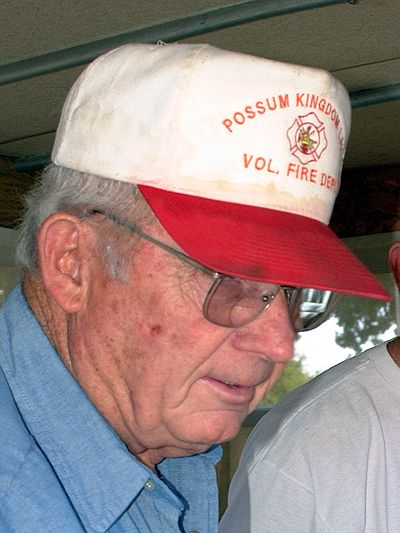
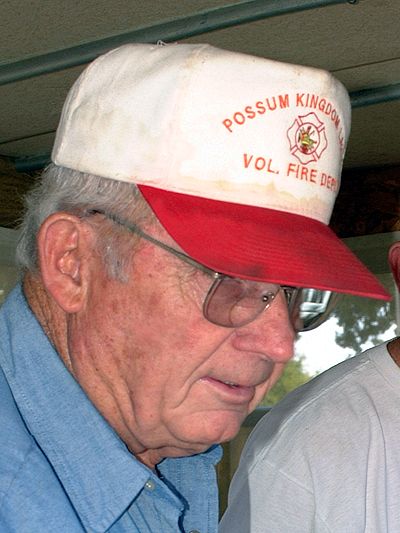
Old Timer: Original

Minor blemish touch-up project.

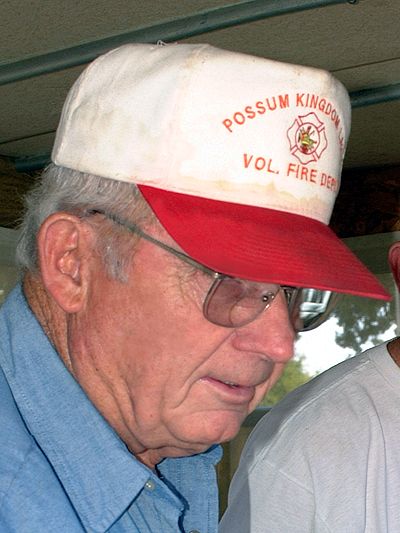
Old Timer: Rubber Stamped

With a couple of clicks, the Rubber Stamp took care of a couple of unwanted spots.

Old Timer: Rubber Stamped More

And with a little more work, you get an idea of how fashion magazines make their models appear "picture perfect".

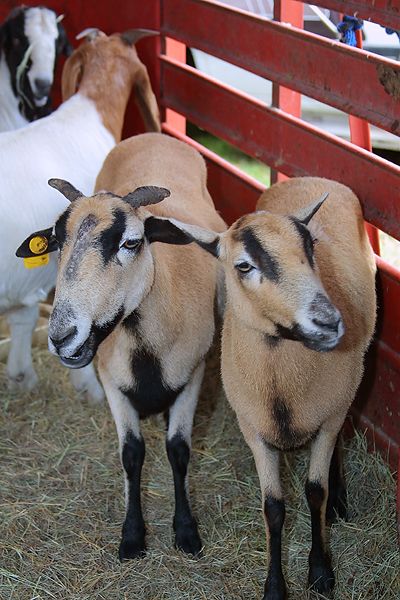
Goats: Original

Big Job:

I didn't notice the big, ugly fighting scar on the goat's head until I got home and looked over my pictures.

It obviously didn't bother the goat, but it ruined what was otherwise a pretty cute snapshot.

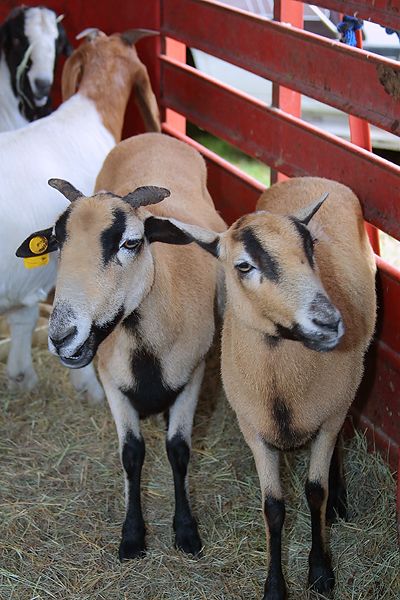
Goats:  Rubber Stamped

This particular repair job required multiple source points, multiple brush sizes, and multiple opacity changes.

For about 5 minutes work*, it was certainly worth it.

(*Your mileage may vary... the more you practice, the better and quicker you'll get.)


Return to Top of Page