|
|
|
Good
exposure and good white
balance are
the two most common problems photographers have
with their pictures. If exposure & white
balance are off, they can ruin otherwise good
pictures, producing ... Good exposure
& good white balance are the heart &
soul of a good picture. Learn how to correct
them and you'll be a lot happier with your
results. If I didn't
shoot Raw, I'd often find myself struggling with
a difficult, inconsistent, sometimes losing
battle with exposure & white balance repairs
on in-camera Jpegs or Tiffs in Photoshop. (Not
fun.) On the
other hand, because I do shoot
Raw, I can easily correct exposure and white
balance problems after the fact with some simple
adjustments in my Raw processing software. Not
worrying about exposure and white balance means
quicker and more spontaneous shooting. (And more
fun!) That's why I let
my camera automatically meter itself, leave my
in-camera exposure compensation set to "0" (no
compensation), and leave my camera's white
balance set on
automatic,
concentrating
my attention on composition, content, and focus
point. With Raw format,
the camera captures a picture with enough
surrounding data to cover two stops of over or
underexposure, all possibilities of white
balance, and several additional variables. Just
like a regular Jpeg or Tiff, the camera sets the
exposure & white balance where it (or you)
think it should be according to its metering
& white balance analysis ... but if they
come out wrong, they can be easily reset on your
computer. Exposure
Compensation and White Balance are the most
important tools for Raw files, they're also the
easiest to learn & use. Raw format is a
choice for virtually all modern digital SLRs and
many point & shoot digitals. Nikon, Canon,
Olympus, Fuji, Sigma, Pentax, Kodak
Professional, and others offer Raw format
shooting and have their own processing software.
Besides factory branded software, independent
software developers such as Bibble Labs, Capture
One, QImage, Adobe (Camera Raw), and others have
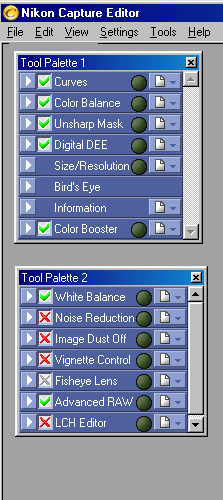
Raw processing software. (At
left) Nikon Capture 4 software is a
good example of Raw Conversion
Software. It has
a wide array of controls &
adjustments and is compatible with
pre-D3 / D300 series Nikon digital
cameras. Below: Raw Nikon
D100 flash photo, matrix metered, significantly
underexposed. The bright sunlight in the
background windows made the camera's matrix
exposure calculations way too dark for the
subject. Because the
picture was taken in Raw format (NEF), the
exposure can be corrected after the fact
using Nikon Capture software. How? NEF picture
files record & retain two full stops of
exposure value (EV) data on each side of the
original settings. And when a NEF file is opened
in Nikon Capture, the software allows you to
reset the exposure anywhere within those two
full stops, up or down. (Below) In this
case, a boost of +1.75 corrected the exposure
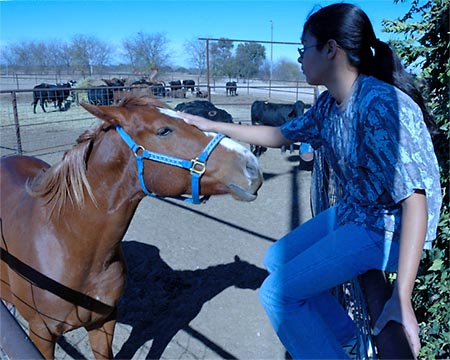
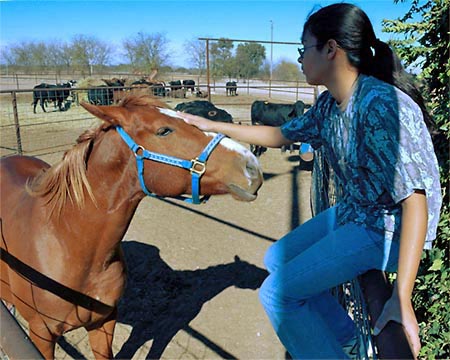
nicely. Example of white
balance problems shown below: Before
correction: After
correction: |

.jpg)
.jpg)