|
|
|
Lonestardigital's
Texas
2-Step Easy
to use free Universal
Sharpening
Action*
for
Photoshop 5, 6, 7, CS, CS2,
CS3, and CS4 that extracts the
fine details in your pictures
with unmatched smoothness
& clarity. Reader
comment: "I
am using your 2 Step Sharpening
(Luminosity) action in CS3 Extended and
find it brilliant – my current
project is taking photographs for a
book I am co-publishing on New
Zealand’s native forests. With the
often high contrast conditions present
with in-forest backlit scenes (e.g.
sunlight refracting off small shiny
surfaced leaves) it is imperative that
sharpening is subtle and your action
provides exactly that with great
control." Kind
regards, *What
is a Photoshop
Action?
An Action is an Adobe Photoshop
process that automatically executes a
series of predefined tasks and
operations. Lonestardigital's
Texas 2-Step sharpening action
was developed using the best attributes
of all previous Lonestardigital
sharpening actions. It utilizes two
advanced blending layers with three
different sharpening procedures in two
separate steps. Software,
cameras, and image formats
supported *The
Texas 2-Step Action uses
Adobe Photoshop
Layers: The
2-Step Action
is
free
to download & use without
restrictions 2-Step
is available in two versions. One
sharpens in RGB Luminosity, the other
sharpens in Lab Color's L
Channel. Why two
versions? Because advanced users have
two schools of thought on color modes
& sharpening. With
either version, Photoshop sharpens only
the details in an image, not the
colors. This is important, because
sharpening colors can result in
unwanted color shifts or increased
color vibrance. RGB Luminosity and Lab
Color's L Channel both exclude the
image's color information during the
sharpening process. The
visual differences in sharpening
results between the two versions are
nearly impossible to see. To me, it's
more a matter of personal preference,
much like comparing Nikon vs. Canon,
Toyota vs. Honda, Chocolate vs.
Vanilla, Coors Light vs. Bud
Light. For
what it's worth, I use RGB Luminosity
sharpening when smooth skin tones are
of prime importance, and choose L
Channel Lab Color sharpening when
meticulous details are more important.
At 500% magnification, the RGB version
is slightly cleaner looking, while at
the same magnification the Lab version
shows a tiny bit more fine detail
(which is sometimes not too flattering
on skin tones). The
2-Step Action targets two different
midtone zones using Adobe Photoshop's
Advanced Layer Blending.
By
using Advanced Layer Blending, the
sharpening is confined to two unique
midtone zones. Midtone sharpening
avoids sharpening along abrupt bright
& dark edge transitions that can
cause edge jaggies &
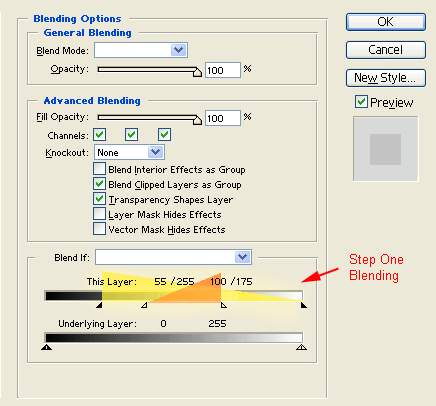
halos. Step
One Convolution
matrix edge sharpening plus an
ultra low radius unsharp mask
extract hidden midtone details
within two overlapping
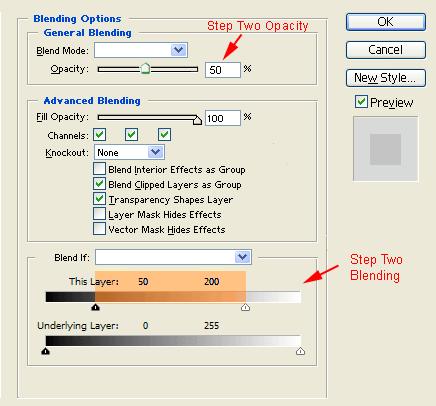
sharpening zones. Step
Two The
blending area is then
reconfigured to a single
midtone sharpening zone and
the Layer Opacity is reset to
50% transparency. Unsharp
Mask is applied at 100%, 1.0
radius, 10
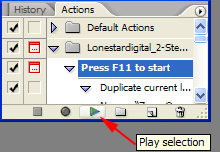
threshold. How
to run the
Texas
2-Step Sharpening
Action: Everything
will then proceed
automatically until this
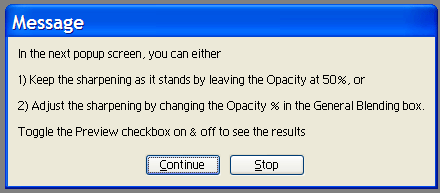
message screen pops up .
Click
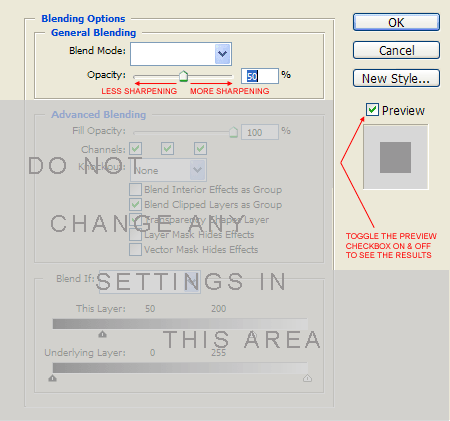
on the Continue button and the
Action will proceed to the
next screen. Final
sharpening can now be adjusted
if desired by changing the
Opacity percentage.
Then
click on the OK button to
finish the Action. You
should always check your pictures at
100% view (also called "actual pixels"
or "original size") for the best
analysis of sharpening
quality. In-camera
sharpening should be preset to
"Normal" (midpoint strength) or
slightly lower. As has always been the
case, "normal" in-camera sharpening
produces images that are generally
sharp but still slightly
soft. Please
do not be too aggressive with your
in-camera
sharpening! Unsharpened
Raw files should be pre-sharpened
to the in-camera equivalent of midpoint
strength or slightly lower before
running the action in
Photoshop. Download
Links (free
download, free to use) Download
the Texas 2-Step RGB Luminosity
Sharpening Action v1.1 (atn
file) Download
the Texas 2-Step Lab Color Sharpening
Action v1.1 (atn file) If
you prefer to download a zipped file
and extract it yourself: Download
the Texas 2-Step RGB Luminosity
Sharpening Action v1.1
(zip) Download
the Texas 2-Step Lab Color Sharpening
Action v1.1 (zip)
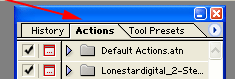
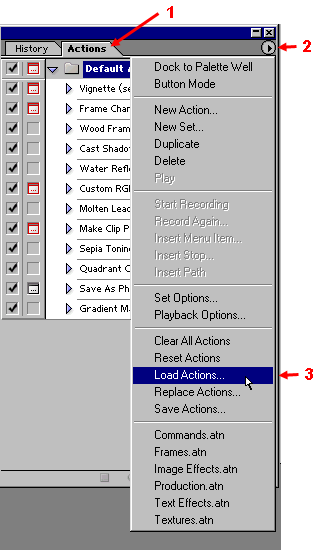
How
to load an Action into
Photoshop: Applies
to Adobe Photoshop 5, 6, 7,
CS, CS2, and CS3. (Windows or
Mac) |