Lonestardigital.com
Website Copyright

Site Directory

Home Page
About / Contact
Site Search / Links

Photoshop Articles & Tutorials

Auto Contrast
Better Blue Sky
Crooked Pictures
Photoshop Tips
Haze Removal
History Brush
Hot-Key Action
Lonestardigital USA Sharpening Action
Perspective Correction
Rubber Stamp Tool
Skin Tone Correction
Smart Blur
Unsharp Mask + Fade

Miscellaneous Articles

Action Photography
Aperture Diffraction
D1X Mystery Pixels
D2H Skin Tones
D30 & D60 Color Fix
LCD Viewfinder Ideas
Multiplier Effect
Nikon D1 Color Fix
Printing & Processing
QM Pro for Noise
Why Shoot Raw?

Digital SLR
Camera Reviews

Contax N Digital
Canon EOS D30
Canon EOS 1D
Fuji S1 Pro
Fuji S2 Pro
Kodak DCS 315
Kodak DCS 620
Kodak DCS 620x
Kodak DCS 760
Kodak DCS Pro14n
Kodak 645M ProBack Nikon D100
Nikon D1 / D1H / D1X
Nikon D2H
Nikon D2X
Olympus E1

Point & Shoot
Camera Reviews

Agfa ePhoto 1680
Nikon Coolpix 700
Nikon Coolpix 800
Nikon Coolpix 900
Nikon Coolpix 950
Nikon Coolpix 990
Nikon Coolpix 995
Nikon Coolpix 5700

Other Reviews

Flash Accessories
Kodak 8500 Printer
Olympus P-11 Printer
Sigma 50-500 Lens

Stock Photography

Colorful Cactus Flower
This little bloom was about the size of a golf ball.

Cactus Flower

Photo taken with a Nikon 105 VR Macro lens on a Nikon D3, ISO 800, Aperture Priority @ f/16, shutter speed 1/500th. Raw file converted in Nikon Capture NX with sharpening reset to 2, Contrast set to -1. Final sharpening done in Adobe Photoshop with the all new Lonestardigital USA Sharpening Action.

Click to enlarge: 100% view (not resized) 2832 x 4256 pixels, 3.3 MB
Click to enlarge: Resized to 50% of original 1416 x 2128 pixels, 1.1 MB
Click to enlarge: Resized to 25% of original 708 x 1064 pixels, 480 KB


LCD Monitors - The Importance of Native Resolution

Few LCD Flat Panel Monitor or Laptop Computer users know that they need to run their screens at full native resolution to display images, text, and graphics at their best. In many cases, what people consider to be a poor quality LCD monitor is simply the result of using less than the screen's native resolution.

What is Native Resolution?

All LCD screens are built with a fixed quantity of display pixels. This fixed quantity of pixels is called native resolution. LCD screens cannot display any resolutions higher than their native resolution.

Different sizes of LCD screens have different native resolutions. Generally speaking, the larger the screen, the higher the native resolution.

The term "Native Resolution" applies only to LCD screens, it does not apply to CRT monitors.

There is no fixed resolution on CRT monitors. Simply put, CRTs can project a wide range of resolutions onto a blank screen.

Your video card has he ability to display different resolutions on an LCD screen, but you really shouldn't do it.

Video cards are not specifically designated for just LCD or just CRT use, the same card can work on either type of monitor. This gives you the ability to display a lower screen resolution than the LCD's built-in native resolution, but it's not a good idea. That's because lower screen resolutions are degraded in varying degrees when scaled to fit an LCD screen's native resolution pixel grid.

Example:

Screen Resolution 1

A grid representing a 20" LCD panel's 1600 x 1200 pixel native resolution screen.

Screen Resolution 2

Let's say you decide to reduce the screen resolution to 1280 x 960 pixels because you like the look of larger images, text, and icons.

1280 x 960 pixels actually cover an area like this.

Screen Resolution 3

The LCD's fixed-pixel display automatically scales up the lower screen resolution it to fit its 1600 x 1200 native resolution.

Screen Resolution 4

The enlarged 1280 x 960 pixels now cover the full screen.

Yes, images, text, and icons will look bigger.

But the scaled pixels are mismatched in size with the actual screen pixels.

Screen Resolution 5

Red grid: Scaled display pixels.

Black grid: Actual screen pixels.

The scaling mismatch causes losses in image sharpness, poor text quality, and / or edge color fringing.

Below: An extreme example of blurred, broken, & artifacted text caused by resolution scaling.

The results of non-native LCD screen resolution

The loss of display quality by running mismatched resolutions on an LCD screen can be minimal depending on your choice of settings, but it's definitely something you need to be aware of.

For example, I originally set up my wife's Dell 2007FP LCD monitor with her preferred display setting of 1280 x 960. She liked the way the text, fonts, and icon sizes looked at that resolution ... and everything seemed to be great. If I didn't know better, we both would have been satisfied with the display quality as it was.

But when I changed the display setting to match the screen's native resolution of 1600 x 1200 so I could show her what she was missing out on, the improvement was obvious. Text, fonts, and icons were smaller than she liked but the overall display quality became virtually perfect. So I bumped up the text, font, and icon sizes one notch and now we're both happy.

The Bottom Line:

Always match your screen resolution with your LCD panel's maximum native resolution. A good MVA, PVA, or IPS panel LCD monitor set at native resolution can deliver image and text quality that's equal to or better than a good CRT monitor.

Typical Desktop Computer LCD Monitor Native Resolutions

Nearly all makes & models of desktop flat screens fit these specifications.

Screen Size

Aspect Ratio

Native Resolution

15” Standard

4:3

1024 x 768 pixels

17” Standard

5:4

1280 x 1024 pixels

17" Widescreen

15:9

1280 x 768 pixels

18” Standard

5:4

1280 x 1024 pixels

19” Standard

5:4

1280 x 1024 pixels

19” Widescreen

16:10

1440 x 900 pixels

20” Standard

4:3

1600 x 1200 pixels

20” Widescreen

16:10

1680 x 1050 pixels

21” Standard

4:3

1600 x 1200 pixels

21" Widescreen

16:10

1680 x 1050 pixels

22" Widescreen

16:10

1680 x 1050 pixels

23" Widescreen

16:10

1920 x 1200 pixels

24” Widescreen

16:10

1920 x 1200 pixels

26" Widescreen

16:10

1920 x 1200 pixels

27" Widescreen

16:10

1920 x 1200 pixels

28" Widescreen

16:10

1920 x1200 pixels

30" Widescreen

16:10

2560 x 1600 pixels

Laptop Computers

Laptop screens are subject to the same rules of matching native resolution as desktop flat screen monitors.

As shown in the chart below, laptops have large native resolution variances within the same screen sizes depending on make & model.

If you're thinking about buying a laptop for photography use, remember that the higher native resolutions produce the best image display qualities. As with desktop LCD panels, for best results you should set your laptop's screen resolution to match its maximum native resolution.

Screen Size

Aspect Ratio

Native Resolution

12” Standard

4:3
4:3
4:3

*800 X 600 pixels
*1024 x 768 pixels
*1400 x 1050 pixels

12” Widescreen

16:10

1280 x 800 pixels

13” Standard

4:3
4:3

*800 x 600 pixels
*1024 x 768 pixels

13” Widescreen

16:10

1280 x 800 pixels

14" Standard*

4:3
4:3

*1024 x 768 pixels
*1400 x 1050 pixels*

14” Widescreen

15:9
16:10
16:10

*1280 x 768 pixels
*1280 x 800 pixels*
*1440 x 900 pixels*

15” Standard

4:3
4:3
4:3
5:4
3:2
3:2

*1400 x 1050 pixels
*1024 x 768 pixels
*1600 x 1200 pixels
*1280 x 1024 pixels
*1152 x 768 pixels
*1280 x 864 pixels

15” Widescreen

16:10
16:10
16:10
16:10

*1280 x 800 pixels
*1440 x 900 pixels
*1680 x 1050 pixels
*1920 x 1200 pixels

16” Standard

5:4

1280 x 1024 pixels

17” Widescreen

16:10
16:10
16:10

*1440 x 900 pixels
*1680 x 1050 pixels
*1920 x 1200 pixels

*Native Resolutions vary
by make & model

How do you match your video card's screen resolution with your LCD panel's native resolution?

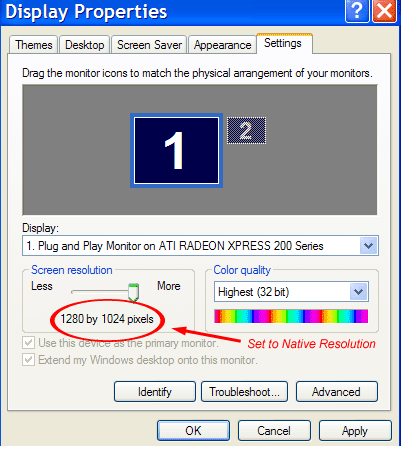
Your video card's screen resolution can be easily set equal to your LCD panel's native resolution in the display properties section of your computer's control panel. (Example: Windows XP screenshot of maximum screen resolution on a 17" Standard LCD monitor shown below.)

Screen Resolution

Larger fonts:

If the text on the computer's desktop display is too small, make it larger. (Example: Windows XP screenshot shown below)

 Large Fonts

Larger icons, clearer text:

Options for larger icons and clearer looking text are available under "Effects". (Example: Windows XP screenshot shown below)

Clear Type  and Large Icons

Browser text:

You also might want to increase the text size in your browser. (Example: Internet Explorer 7 screenshot shown below)

Browser Text Size

To learn more about LCD screens, visit Lonestardigital's Links Page - there's a special section just for LCD monitors.


Two new cameras and a new computer system
Shooting & processing pictures just became better, faster, and easier.

Nikon D3

Nikon D3
Finally, a pro class Nikon DSLR that I can shoot in any kind of lighting conditions without compromising aperture or shutter settings.

What is it about the D3 that I like so much compared to all of the other DSLRs that I've owned or used?
  • Super clean high ISOs. In most cases, ISO 1600 looks just as good as ISO 200 except for a little less saturation. ISO 3200 & 6400 are very good as well. By now, everybody knows these things, but how could I not repeat them?
  • Lo-1 (ISO 100) is also available to slow down shutter speeds for specific reasons, such as creating intentional motion blur while retaining a preferred aperture. (E.G. aircraft propellers, waterfalls, ocean waves.)
  • Big pixels mean no diffraction issues. f/16 & f/22 apertures without compromise.
  • Virtual Horizon. I've programmed my camera's Function button to display the Virtual Horizon in the viewfinder on the fly any time I press it. A huge help for taking level pictures, something I've always had trouble with.
  • The sound of the shutter. The D3 sounds exactly like a Nikon F5 or an early Kodak Pro (F5 based) digital body. Those who know that sound will know what I'm talking about ... Sweet, smooth precision. Equivalent to comparing the sound & feel of a high end Mercedes-Benz or Lexus door as it shuts compared with any other kind of car.
  • 100% view sharpness. I've never seen such sharp pictures at full size resolution on my computer as the D3 produces. It's easy on the eyes.
  • Twin memory card slots that match. (Both CompactFlash.) I use the second card as a mirror backup while I review and delete what I don't like during a shoot on card number one. If I accidentally delete a shot on card one, it'll be there on card two to restore when I get home.
  • The nicely finished black rubber BS-2 slide-in flash shoe cover (included with with camera). I rarely use a speedlight, and this makes the top of the camera smooth & less prone to scratching things I bump up against.
  • Tempered glass LCD screen. (Supposedly scratch proof.) No protective cover necessary. I've never liked LCD covers, they've strictly been a necessary evil to me. Time will tell if it really is as durable as they say.

Nikon D300

Nikon D300
When size matters (small & light),
the D300 is a joy to handle & use.

  • Overall image quality is very, very close the the D3 at ISO 1600 & lower.
  • The perfect camera for my Nikkor DX 10.5 Fisheye & 12-24 zoom lenses. These lenses work better on this camera than on any other camera I've ever had them on.
  • Like the D3, its tempered glass LCD screen doesn't need a cover.
  • What else? Huge price difference compared to the D3. You can almost buy three of these for the price of one D3.

Nikon D300 ISO 1600 Available Light  Photo

D300 ISO 1600
Nikon D300 ISO 1600 available light photo taken in dim hallway lighting with a Nikon 12-24 DX zoom lens at 13mm. Programmed Auto Exposure @ f/4, shutter speed 1/45th, auto white balance. Raw file converted in Nikon Capture NX with in-camera settings of Sharpening 2, Contrast -2. Final sharpening done in Adobe Photoshop with the all new Lonestardigital USA Sharpening Action.

Click to enlarge: 1200 x 1000 pixels, 548 KB


New Computer System

The new system made a huge difference in my image processing workflow.

For the last couple of years, image processing on my computer (1 Ghz Pentium P-III with a gig & a half of ram) was getting slower & slower as the files became bigger & the software became more complicated. Nikon Capture (the original version) was starting to really slow down on the big Raw files I'd been processing, and Nikon Capture NX was even slower ... a lot slower. I knew I wasn't alone with this, forum thread after forum thread across Internet photo sites echoed my woes. People loved what NX did for Nikon Raw files, but hated how slow it was.

When I switched to the new Nikon D3 and D300, Nikon Capture was no longer an option because D3 & D300 Raw files were not supported. Nikon had moved on from its original software format and was now dedicated to the NX version. Unfortunately, Capture NX required more processing power & memory than my computer could efficiently handle. A D3 or D300 Raw file opened in Capture NX took agonizingly long to work through, frequently locking up with the dreaded "program not responding" error message. For all practical purposes, it was useless.

I thought about trying other Raw converters, I even thought about abandoning Raw & just going Jpeg, but that was a cop-out. I found myself reluctant to take new pictures, knowing that facing the Raw files on my technologically challenged computer was going to be too time consuming to be any fun.

My computer had become a serious constraint on my creativity.

And so, it was clearly time to look at building or buying a new system.

The Vista challenge

The first challenge in my new computer quest was the operating system. I'd been running Windows XP. Smooth, stable, & problem free.

I didn't want to make the change to Vista. Not that there's anything wrong with Vista ... it has some nice new features, but it also has some driver issues and compatibility problems with certain hardware & software that I use. Undoubtedly, in a year or two, Vista will smooth itself out with more Service Packs & updates that will make it as trouble free as Windows XP, but it's not there yet.

Unfortunately, everything I'd seen for sale in a new computer came (only) with Vista. Along with a bunch of programs & applications that had no interest to me. That's how they came, take it or leave it.

So it looked like I'd either have to build a new computer from scratch and install XP myself (XP is still readily available to computer builders), or buy a new Vista-based machine, format the hard drive, and do a clean install of XP.

Discovery

"Hey", one of my friends who also builds computers said, " Did you know that the Small & Medium Business online store at Dell's website sells brand new computers with Windows XP operating systems as standard equipment? Without any preloaded software unless you order it. And you can have it built just like you want it as cheap or cheaper than you can build it yourself."

I discovered that he was right. Seems like most business customers still prefer XP, and Dell caters to them with a special product lineup. I also discovered that you don't have to own a business to buy from them. (Anybody can.)

Dell Vostro Mini Tower - Click to link to the Dell Vostro 400 Web Page

So I bought a new Dell 400 Vostro mini-tower and had it built with Windows XP (and no other software), an Intel CoreTM2 Quad Processor, 4 Gigs of Ram, twin SATA hard drives, 512 MB Video Card, built-in card reader, two DVD-CD R-RW drives, and a built-in10/100 Ethernet & sound card. It was so reasonably priced that I bought two, the second being one for my wife (which by no coincidence also eliminated the hardware jealousy factor.)


Is it fast?  Beyond my wildest dreams.

Nikon Capture NX now opens up a D3 or D300 Raw file in just over two seconds. Multiple, sequential Raw file adjustments in Capture NX respond instantaneously. Raw conversion to a 16 bit Tiff and opening it in Photoshop takes just under three seconds.  Photoshop flies. I run three open imaging programs simultaneously (Capture NX, Photoshop, and ThumbsPlus), swapping back & forth, previewing images, opening files & working with adjustments. The whole system is crazily, wonderfully, blazingly fast with everything it does.

No more image processing woes.

All for less than the price of a good zoom lens.

COMPETITIVE CAMERAS
New Nikon D3
IN STOCK NOW !

Nikon D3

(214) 744-5511
(800) 688-0211
Competitive Cameras
DALLAS, TEXAS

COMPETITIVE CAMERAS
New Nikon D60 Kits
with 18-55 Nikon Zoom Lens
IN STOCK NOW !

Nikon D60

(214) 744-5511
(800) 688-0211
Competitive Cameras
DALLAS, TEXAS

COMPETITIVE CAMERAS
New Olympus E-3 &
New E-3 Accessories
IN STOCK NOW !

Olympus E3

(214) 744-5511
(800) 688-0211
Competitive Cameras
DALLAS, TEXAS

COMPETITIVE CAMERAS
New Canon 40D
IN STOCK NOW !

Canon 40D

(214) 744-5511
(800) 688-0211
Competitive Cameras
DALLAS, TEXAS

COMPETITIVE CAMERAS
New Nikon D300
& D300 Kits
IN STOCK NOW !

Nikon D300

(214) 744-5511
(800) 688-0211
Competitive Cameras
DALLAS, TEXAS

COMPETITIVE CAMERAS
New Canon 1DsMkIII
IN STOCK NOW !

Canon 1DsMkIII

(214) 744-5511
(800) 688-0211
Competitive Cameras
DALLAS, TEXAS

COMPETITIVE CAMERAS
Sigma Lenses
(214) 744-5511
(800) 688-0211
Competitive Cameras
DALLAS, TEXAS

COMPETITIVE CAMERAS
Tokina Lenses
(214) 744-5511
(800) 688-0211
Competitive Cameras
DALLAS, TEXAS

COMPETITIVE CAMERAS
Tamron Lenses
(214) 744-5511
(800) 688-0211
Competitive Cameras
DALLAS, TEXAS

COMPETITIVE CAMERAS
Lens Sale
ALL
LENSES
ON SALE!
ALL BRANDS & ALL SIZES FOR ALL CAMERAS
HUGE SELECTION
(214) 744-5511
(800) 688-0211
Competitive Cameras

COMPETITIVE CAMERAS

Memory Cards
FAST MEMORY CARDS
(214) 744-5511
(800) 688-0211
Competitive Cameras
DALLAS, TEXAS

COMPETITIVE CAMERAS
Eye-One Solutions
(214) 744-5511
(800) 688-0211
Competitive Cameras
DALLAS, TEXAS

COMPETITIVE CAMERAS
Wacom Intuos
(214) 744-5511
(800) 688-0211
Competitive Cameras
DALLAS, TEXAS

COMPETITIVE CAMERAS
HoodmanUSA
(214) 744-5511
(800) 688-0211
Competitive Cameras
DALLAS, TEXAS

COMPETITIVE CAMERAS

Epson Wide Format Printers

Epson
WIDE FORMAT
Photo
Printers & Supplies

Epson Photo Printers

Epson
Photo
Printers & Supplies

Olympus Dye Sub Printers

Olympus
Dye Sub
Printers & Supplies

Canon
Inkjet
Printers & Supplies

Canon
Dye Sub
Printers & Supplies
(214) 744-5511
(800) 688-0211
Competitive Cameras
DALLAS, TEXAS